
Set up Easy Shipping Restrictions
Four steps, about five minutes. When you're done, shoppers enter their postal/ZIP code in your cart and only the ones you deliver to can check out.
- 1. Approve your plan
- 2. Turn it on in your theme
- 3. Add your postal codes
- 4. Check your cart
- Installed before Oct 2026?
- Troubleshooting
Approve your plan
Install the app from the Shopify App Store. Shopify then shows the plan approval page: $5.99 a month with a 3-day free trial, billed through your Shopify bill. Click Approve.
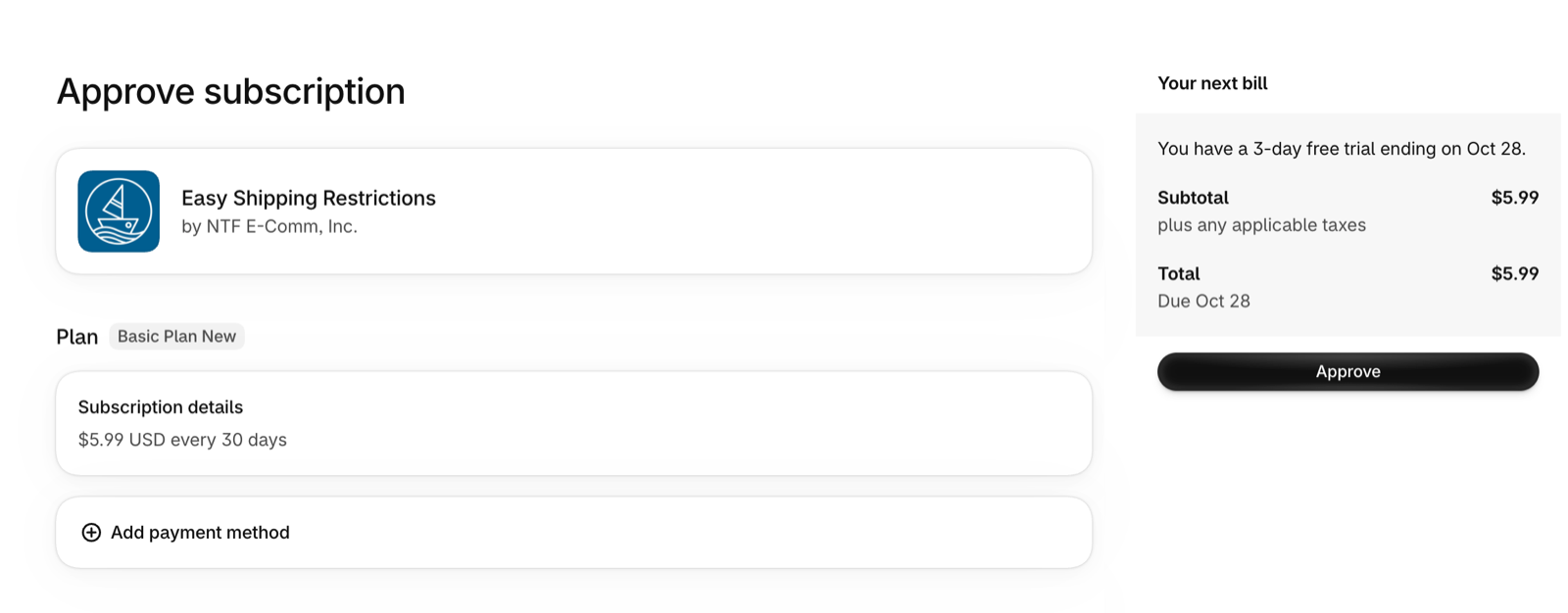
You can cancel any time by uninstalling the app.
Turn on "Shipping restrictions" in your theme
Shopify asks you to switch app features on in your theme yourself; apps aren't allowed to do it for you. It takes one click and a Save.
- In the app, the Setup guide at the top has a Turn on in theme button. Click it.
- Your theme editor opens on the cart page with Shipping restrictions already switched on.
- Click Save (top right).
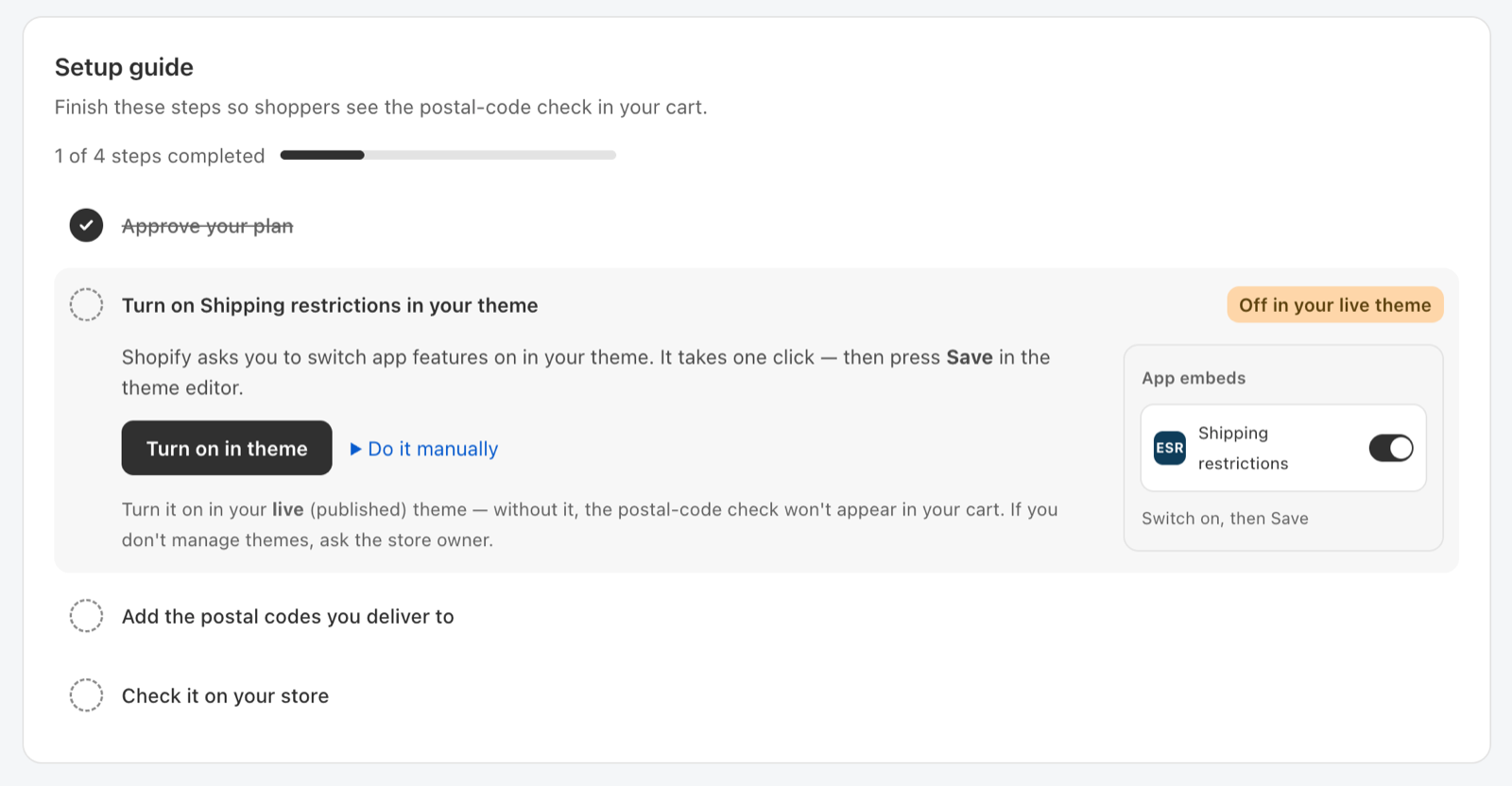
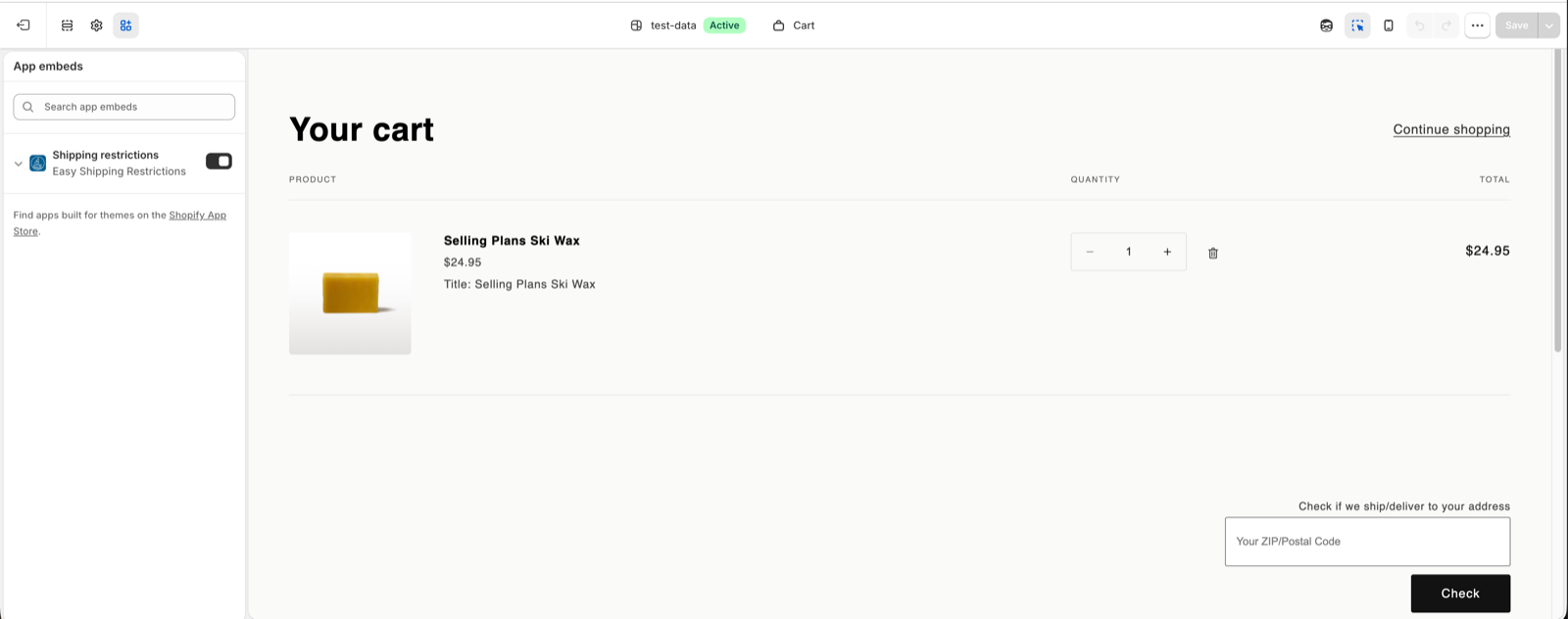
Prefer to do it by hand? Online Store → Themes → Customize on your live theme → App embeds (the icon in the left bar) → switch on Shipping restrictions → Save.
Add the postal/ZIP codes you deliver to
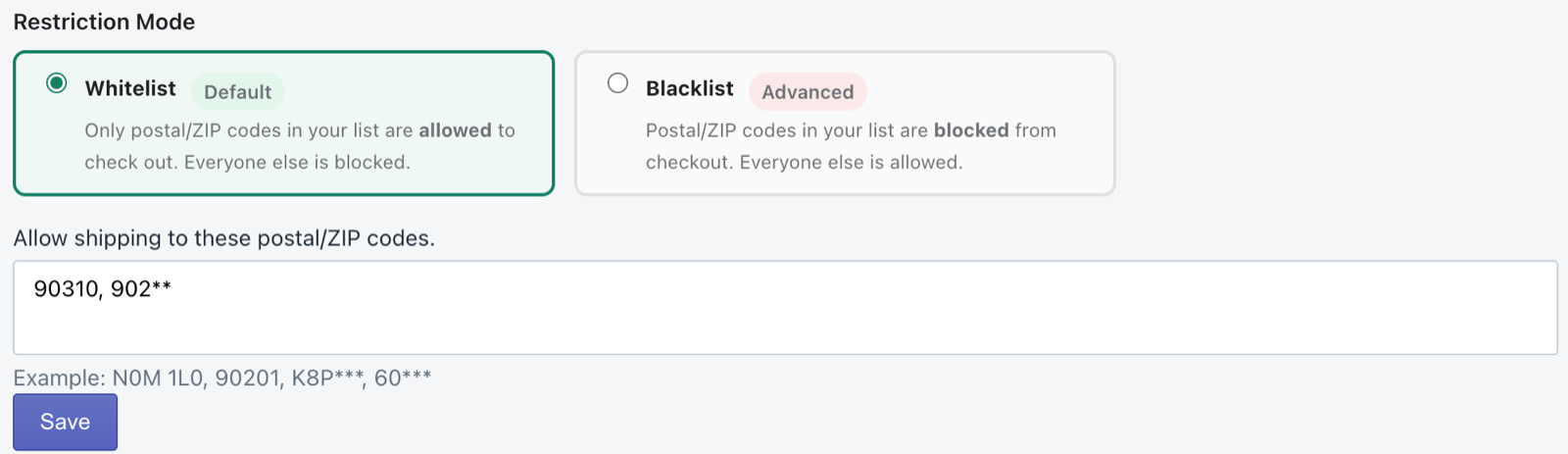
In the app, choose a Restriction Mode:
- Whitelist (default): only the codes in your list can check out.
- Blacklist: the codes in your list are blocked; everyone else can check out.
Then list your codes, separated by commas, and click Save. Use * as a wildcard for a whole area:
- Single codes:
90210, 48169, K8P4C4 - Patterns:
902**matches 90200 to 90299;K8P***matches every K8P code.
Check it in your cart
Open your store, add a product to the cart and enter a postal/ZIP code. A code you deliver to lets you continue to checkout; any other code shows a short message instead.
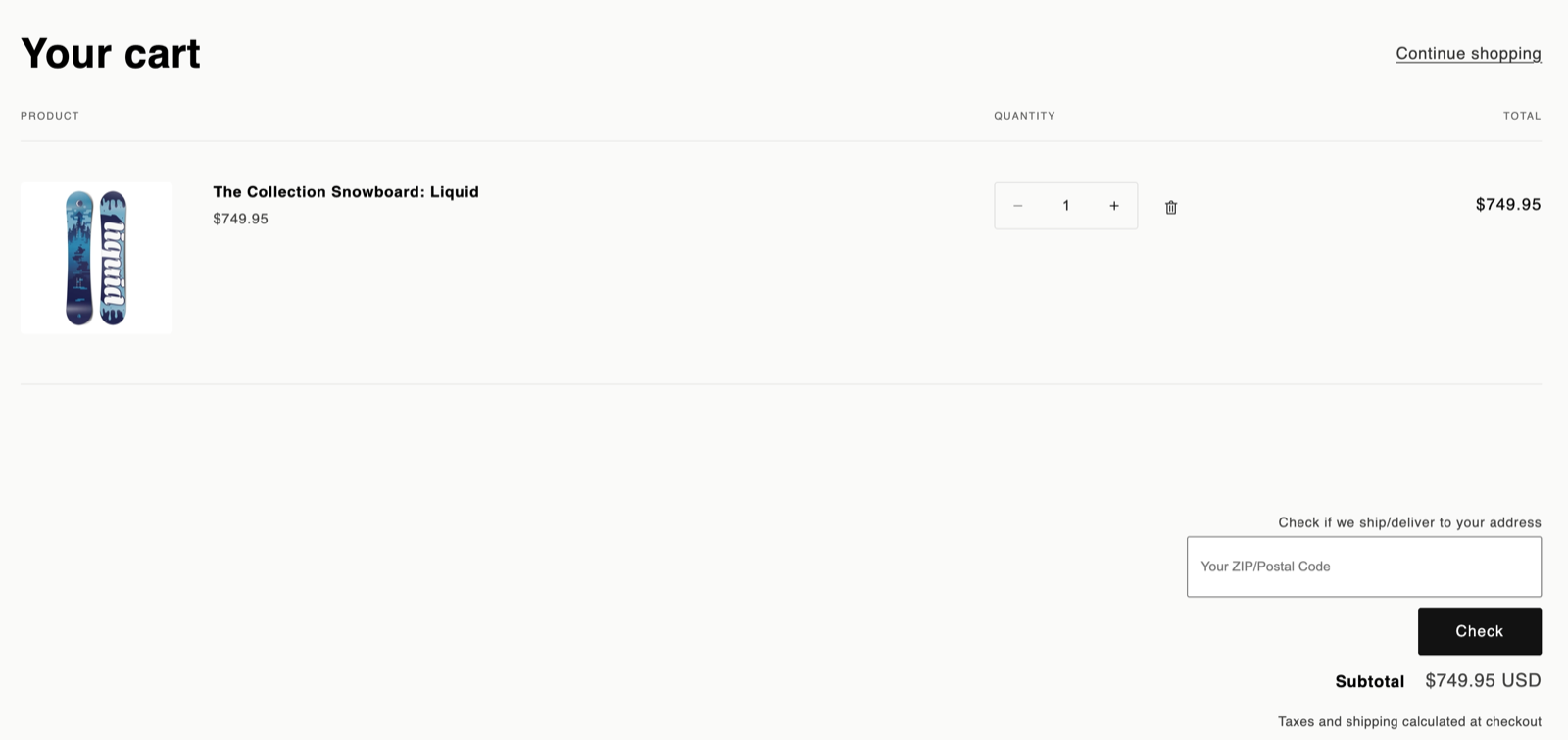
Installed the app before October 2026?
Your store keeps working as it is. Shopify is retiring the older way apps add features to stores on March 1, 2027, so before then do step 2 once: switch on Shipping restrictions in your theme and click Save. Nothing else changes; your postal codes and settings stay as they are. The app shows a reminder card until it's done.
Troubleshooting
I don't see the postal/ZIP code box in my cart
Check, in this order:
- Shipping restrictions is switched on in your live theme and you clicked Save (step 2).
- In the app, Application status says "App is now enabled".
- Your plan is approved: opening the app shows the settings, not an approval or payment page.
- Reload the cart page; if it still doesn't show, try a private window.
Still nothing? Your theme may need a small adjustment. Contact us and we'll take a look.
The Setup guide says "Couldn't check"
The app couldn't read your theme's setting this time. It doesn't mean anything is wrong: open the theme editor (step 2) and check that Shipping restrictions is on.
The app says "Easy Shipping Restrictions is turned off"
Someone switched the app off under Application status. Click Enable there; the check returns to your cart (it can take up to 30 minutes).
The app says "Payment required"
Shopify paused your subscription because a payment on your Shopify bill didn't go through (often an expired card). Update your payment method under Settings → Billing in your Shopify admin; Shopify retries the charge and the app starts working again on its own.
A customer ordered from outside my area
The check happens in the cart. A shopper who goes straight to checkout, for example from a saved checkout link or an express checkout button on a product page, can skip it. Cancel and refund the order in Shopify, and let us know if it happens often.
How do I uninstall?
In your Shopify admin go to Settings → Apps, click the ⋯ next to Easy Shipping Restrictions and choose Uninstall. Billing stops when the app is uninstalled.
Need a hand? We're happy to help you set it up.
Contact support